
Best apps to print text messages from iPhone in 2026
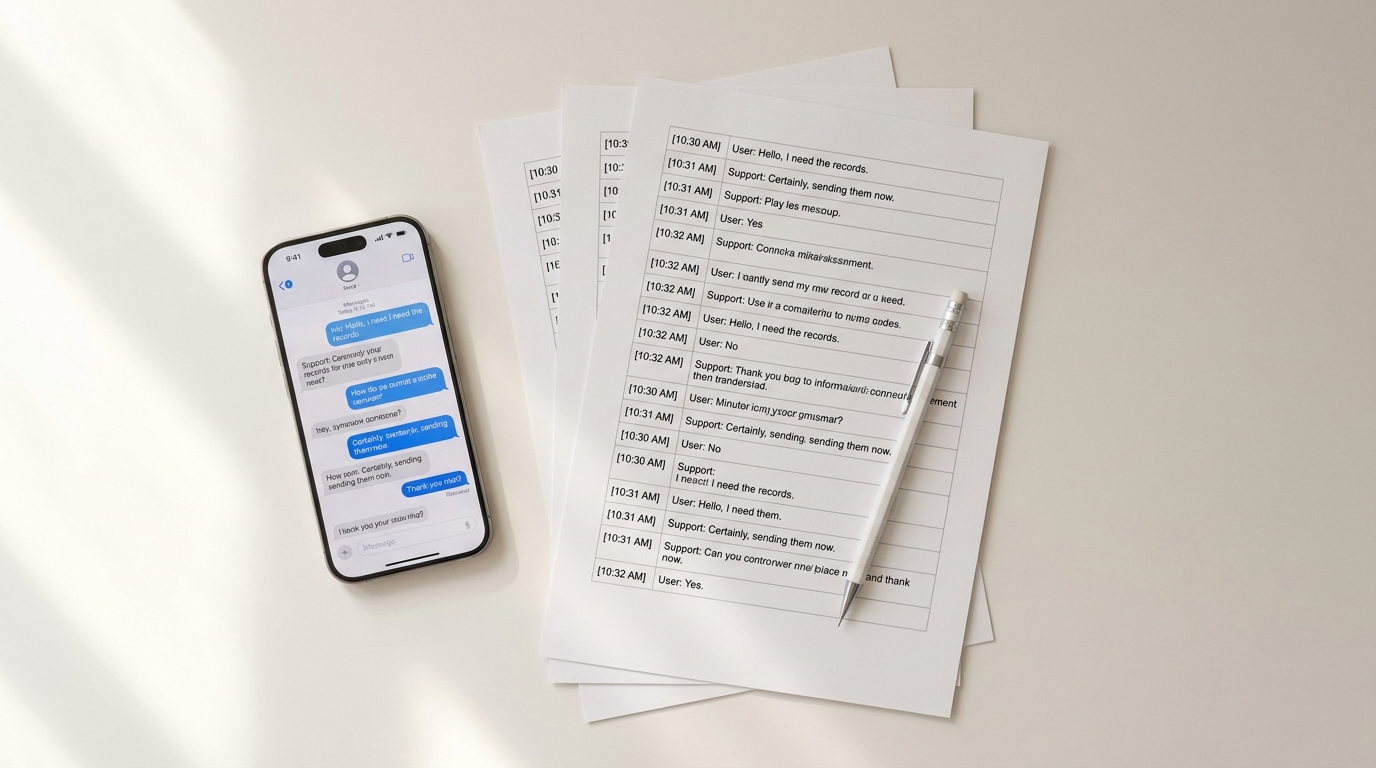
You need to print text messages from iPhone — for a court filing, a custody hearing, an HR complaint, a landlord dispute, or a personal record you want on paper. Apple's Messages app has no built-in print button, and screenshotting your way through a long thread loses timestamps the moment you crop. The six apps below cover every realistic situation: phone-only workflows that produce a paginated PDF in minutes, and desktop tools that read an iPhone backup for bulk-printing entire histories.
Each app on this list has genuine strengths, real trade-offs, and a different kind of user in mind. The right pick depends on three things: which messaging app the conversation lives in, whether you have a Mac or PC handy, and whether the printout needs to hold up to legal scrutiny.
1. TextPort — best for iPhone-only, no computer needed
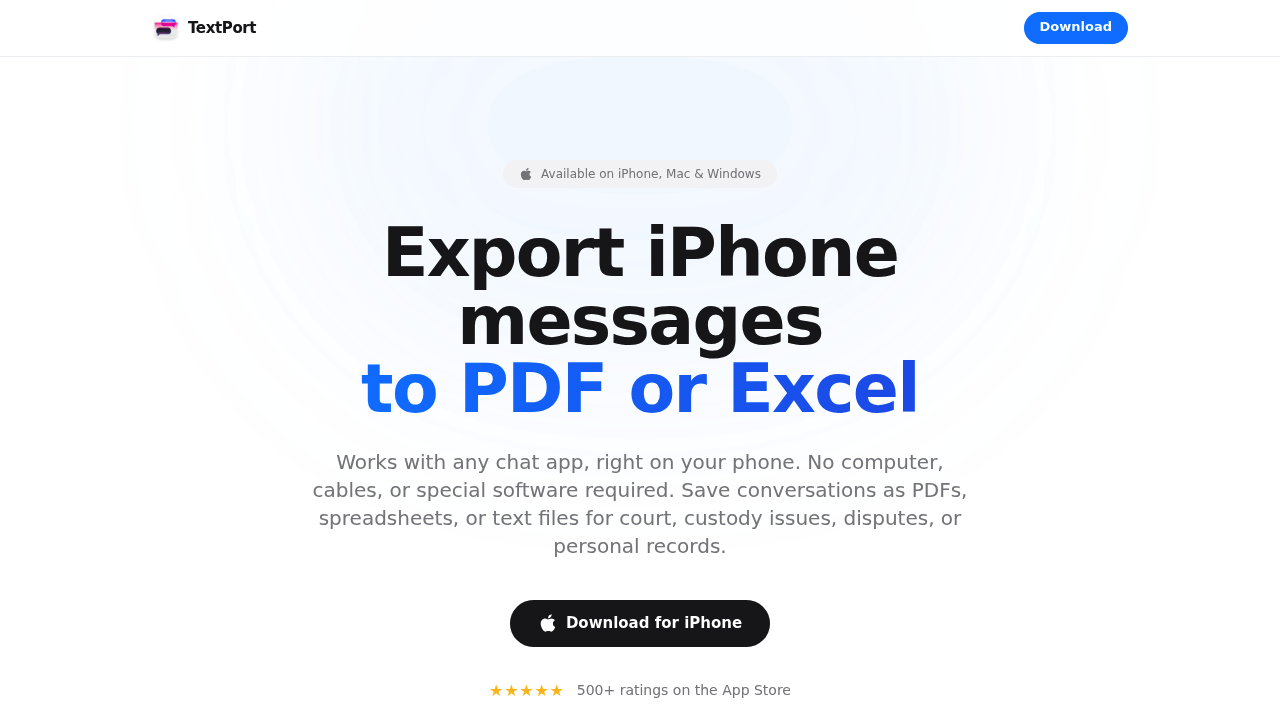
TextPort is the only tool on this list that works entirely on your iPhone, no cables, no computer, no iTunes backup required. You scroll through a conversation while screen recording (or take overlapping screenshots), and TextPort reconstructs the full chat — timestamps, sender names, message order — then exports it as a formatted PDF you can send to a printer instantly.
It supports iMessage, SMS, WhatsApp, Instagram DMs, Facebook Messenger, Telegram, Signal, and more. If it shows up on your screen, TextPort can convert it. Exports come out as PDF (print-ready), CSV (spreadsheet-compatible), or plain text. For anyone who needs to print text messages from iPhone for court or personal records without touching a desktop, it's the fastest route available — and the only one that handles third-party messengers without breaking a sweat.
The PDF output is paginated with consistent headers, every message carries its full timestamp, and long threads flow across pages without clipping mid-message. AirPrint sends straight to any nearby printer; the share sheet lets you email the PDF or save it to Files.
Best for: iPhone users who want to export and print from any messaging app without a computer. Export formats: PDF, CSV, TXT Platform: iPhone / iPad (App Store)
2. iMazing — best desktop tool for iMessage and SMS bulk exports
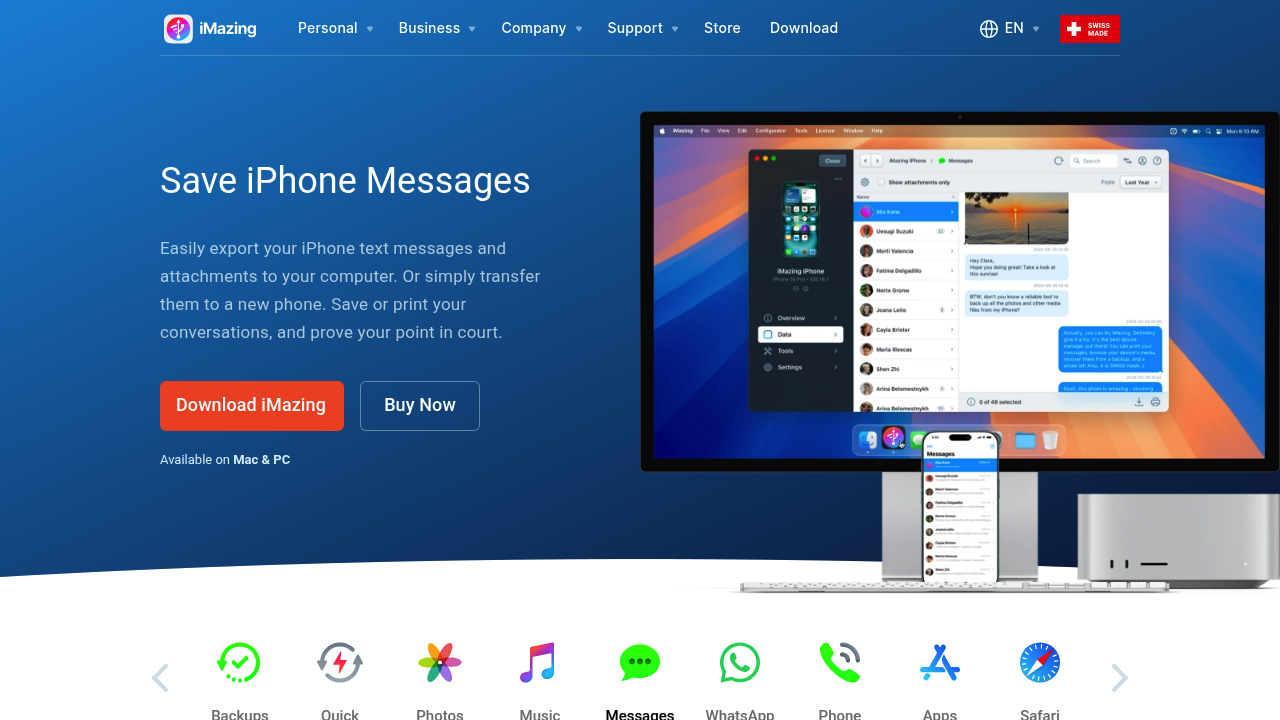
iMazing is a Mac/Windows desktop app that connects to your iPhone via USB, reads the device backup, and lets you browse every iMessage and SMS thread. You can export entire conversations to PDF, Excel/CSV, or plain text — attachments included. The print options include header and footer metadata (contact names, phone numbers, timestamps), which adds legal weight to the output.
It's thorough, but it does require a computer and a wired connection. The free trial is limited; full access costs around $44.99 for a one-time license. If you're handling a large volume of iMessage threads and already work from a Mac or PC, iMazing is a strong choice. For a deeper look at how it compares to alternatives, the best apps to export text messages from iPhone in 2026 covers it in detail.
Best for: Mac/PC users exporting iMessage or SMS in bulk. Export formats: PDF, CSV/Excel, TXT Platform: Mac, Windows (desktop)
3. Decipher TextMessage — best for legal-ready iPhone message printing
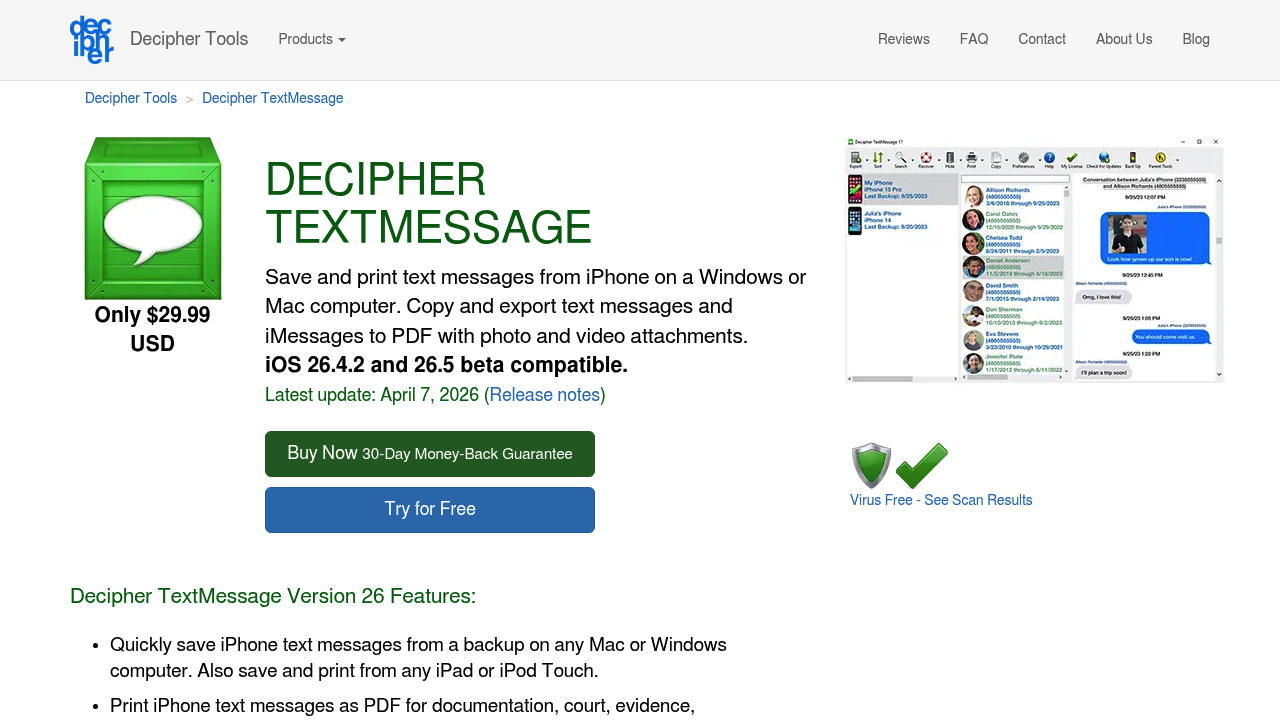
Decipher TextMessage ($29.99 one-time) reads an iTunes or Finder backup of your iPhone on Mac or Windows and displays your full SMS and iMessage history. From there, you can print or export any conversation as a PDF with sender names and phone numbers on every message — a format courts recognize.
The interface is straightforward, the output is clean, and it's been around long enough to have a solid reputation in legal circles. The main limitation: it only works with iMessage and SMS. If you need WhatsApp or Instagram DMs, you're out of luck. A free trial is available, but it watermarks exports until you purchase.
Best for: Legal documentation of iMessage/SMS threads. Export formats: PDF, CSV, TXT, HTML Platform: Mac, Windows (desktop)
4. TouchCopy — best for printing with attachment previews
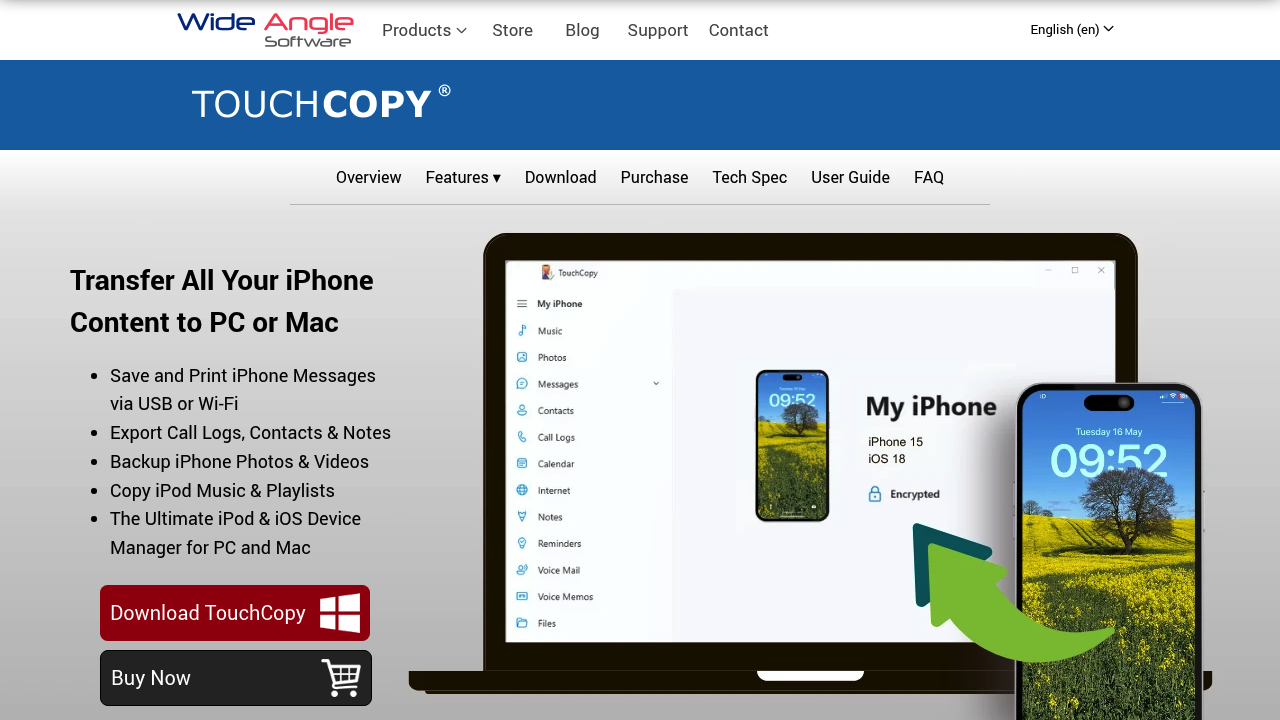
TouchCopy from Wide Angle Software connects to your iPhone over USB and displays SMS, iMessage, RCS, and WhatsApp messages in a readable layout on your Mac or PC. You can print directly from the app or export to PDF and HTML. Attachment thumbnails are included in the printed output, which is useful if photos or voice memos are part of the conversation you need to document.
Pricing sits around $29.99. Like the desktop tools above, it requires a USB connection and a computer — no wireless or phone-only workflow here.
Best for: Conversations with photos, voice memos, or other attachments. Export formats: PDF, HTML Platform: Mac, Windows (desktop)
5. iPhone screenshots + AirPrint — best free option for short conversations
For a handful of messages, screenshots are still the quickest free method. Press the side button and volume up simultaneously on a Face ID iPhone to capture the screen, then swipe the thumbnail to annotate if needed. From the Photos app, tap the share icon and select Print to send directly to an AirPrint-compatible printer.
The catch is obvious: this gets unmanageable fast. A long conversation could mean dozens of separate screenshots, and there's no automatic way to stitch them into a single document with timestamps visible throughout. For anything beyond a few messages — especially anything headed to court — this method falls short. Check out how to print text messages without a computer for a comparison of when screenshots work and when they don't.
Best for: Printing 1–5 messages quickly for free. Export formats: Image (JPEG/PNG), printed page Platform: iPhone (native, no app needed)
6. Apple Messages on Mac — best for iCloud-synced iMessage exports
If you use iMessage and have iCloud Messages enabled, your conversations sync automatically to any Mac signed in to the same Apple ID. On a Mac, open the Messages app, find a conversation, and press Command + P to print it directly — or copy the thread into a Pages or Word document for more formatting control.
This is free and requires no third-party software, but it only works for iMessage and SMS (not WhatsApp, Telegram, or any other app). It also depends on iCloud sync being active; if you've had iCloud Messages turned off, older threads may not appear. And the print layout Apple provides is basic — no export metadata, no page headers, no sender phone numbers. Fine for personal use, less ideal for formal documentation.
Best for: iMessage users on Mac who just need a quick printout. Export formats: Printed page, copy/paste Platform: macOS (native)
Which app should you use?
| Situation | Best pick |
|---|---|
| Need to print from iPhone, no computer | TextPort |
| Bulk iMessage/SMS export, have a Mac/PC | iMazing |
| Court-ready PDF of iMessage/SMS | Decipher TextMessage |
| Conversation includes photos/attachments | TouchCopy |
| Just a few messages, need it free | Screenshots + AirPrint |
| iMessage user on Mac, basic printout | Apple Messages |
How to choose: a 30-second decision tree
If the messages are in WhatsApp, Messenger, Telegram, Signal, Instagram DMs, or any third-party app, your only realistic options are TextPort (screen-record-to-PDF on the phone) or a stack of screenshots. The desktop tools — iMazing, Decipher, TouchCopy — cannot read these apps because Meta, Telegram, and Signal don't expose their message databases to the Apple backup format desktop tools rely on. This is the single most common decision point, and it usually points to TextPort.
If the messages are in iMessage or SMS only, and you already have a Mac or PC nearby, you have more options. Decipher TextMessage is the most focused tool for the job — minimal UI, clean court-ready output, and a long track record. iMazing is the broader choice if you're already using it for other iPhone management tasks. TextPort still works on the phone in this case; pick by which workflow is faster for you, not by which is "better."
If you don't have a computer (the conversation is on your phone, you're not near a Mac, you don't want to install desktop software), the phone-only path is the only path. TextPort is built for this. The print-from-screenshots workflow technically works for very short threads but falls apart on anything beyond a few messages — see the no-computer print guide for the why.
If the printout is headed to court or to an attorney, the format matters more than the tool. Every message needs sender, date, and time visible. The thread needs to be complete. The pages need to be paginated, not a folder of loose images. TextPort, Decipher TextMessage, and iMazing all produce this format. Screenshots-to-paper rarely does. For the full court-specific workflow — including what to bring alongside the printout and what courts will and won't accept — read how to export text messages for court.
What every good print export should include
The most common reason a printed text-message export gets challenged isn't that it's fake — it's that pieces are missing. Whatever tool you pick, the printout should include:
- Sender name or phone number on every message. Not just at the top of the page. Tools that drop this between page breaks are not court-ready.
- Exact date and time on every individual message, in a consistent time zone. A header that says "Conversation with Alex, March 2026" is not enough.
- The complete conversation in chronological order, with no obvious gaps. Selective printing — only the messages that help your case — is one of the most common reasons opposing counsel challenges the printout.
- Group-chat participant labels when applicable. If the conversation has three or more people in it, every message needs to be clearly attributed to one of them.
- Page numbers and a consistent page header. When you hand a fifty-page printout to a judge, page numbers are what lets them find the page you're referring to.
TextPort, iMazing, and Decipher TextMessage all produce this format out of the box. Screenshots stitched together by hand almost never do.
Cross-references
For the specific tool's role in each scenario:
- How to print text messages without a computer — phone-only workflow in depth
- How to print text messages for court from iPhone — long-form court guide
- How to export text messages for court — the use-case landing page
- How to convert text messages to PDF — the PDF-conversion workflow on its own
- Best apps to convert text messages to PDF in 2026 — broader PDF roundup
- Best apps to export text messages from iPhone in 2026 — full export roundup
The right tool depends on how many messages you're dealing with, which app the conversation lives in, and whether you have a computer nearby. For most iPhone users who want a clean, formatted printout without plugging into a desktop, converting text messages to PDF with TextPort is the fastest path from conversation to printed page.
Frequently asked questions
-
Yes. You can print text messages directly from iPhone in a few ways: AirPrint a few screenshots from Photos, or — for anything longer than a handful of messages — use an app like TextPort that turns a screen recording of the conversation into a paginated PDF you can AirPrint or email to a printer. No computer required. The paginated-PDF route is the one that holds up when the printout has to look professional.
-
Open the chat app where the conversation lives. Start a screen recording from TextPort and scroll through the thread from start to finish. Import the recording into TextPort, review the transcribed conversation, then tap Export → PDF. From the share sheet, choose Print to send to any AirPrint-capable printer. The PDF is paginated, every message keeps date, time, and sender, and long threads flow across pages cleanly.
-
Pick the one that matches where the conversation lives and what device you have. TextPort is the strongest phone-only option — no computer needed, supports every chat app (iMessage, SMS, WhatsApp, Messenger, Telegram, Signal, Instagram DMs). Decipher TextMessage and iMazing produce comparable printouts but require a Mac or PC, a USB cable, and an Apple backup of the phone. For most situations where the messages are on your phone and you need a printout today, TextPort is the fastest route.
-
If you have a Mac signed in to the same Apple ID and iCloud Messages is on, Command-P inside the Mac Messages app prints the conversation — basic but free. For a court-ready printout with full timestamps and per-message sender labels, use TextPort on the phone (screen-record → PDF → AirPrint) or Decipher TextMessage / iMazing on a Mac or PC reading an Apple backup. The on-phone route is faster; the desktop route lets you batch many threads.
-
Use the screen-recording control center button, or take overlapping screenshots, to capture the conversation as it appears in the chat app. Then import the capture into TextPort. TextPort transcribes the messages, preserving sender names, timestamps, and order, and exports a paginated PDF. Capturing the messages this way is what makes the printout admissible — screenshots that lose timestamps at the edges are the most common reason printouts get rejected.
-
Yes. TextPort runs entirely on iPhone or iPad. Capture the conversation as a screen recording, let TextPort transcribe it, export to PDF, and AirPrint to any AirPrint-compatible printer — or email the PDF to yourself and print it at a library, print shop, or work. No cable, no Mac, no Apple backup, no iCloud sync. See the dedicated no-computer print guide for the step-by-step.
-
Skip the loose-screenshot approach. Cropped screenshot images drop most per-message metadata and break long threads across awkward page boundaries. Export to a PDF that explicitly stamps every message with date, time, and sender first, then print the PDF. Apps designed for this — TextPort, Decipher TextMessage, iMazing — all preserve timestamps on every line. Generic screenshot printing does not.
-
Self-printed PDFs are routinely accepted for everyday civil matters (custody, harassment, landlord disputes, employment, small claims) as long as every message carries sender, date, and time, and the thread is complete with no cropping or gaps. The format that holds up best is a paginated PDF rather than a stack of loose screenshots. For the full court-specific workflow including what to bring alongside the printout, see how to export text messages for court.

Start exporting your messages
Available for iPhone, Mac, and Windows. No computer required.
